.png?height=200&name=1%20(4).png)

EandM is the only Elite Gold SICK distributor on the West Coast — California, Oregon, and...
A practical reference for engineers working with Siemens PLCs — from finding your device on the network to downloading your project.
Finding a PLC
To begin troubleshooting communication, make sure you are in Project view in TIA Portal. The bottom left corner will show a link to Portal view if you are correctly in Project view.
Click Online and then in the dropdown click Accessible devices, or you can click the Accessible devices icon in the toolbar.
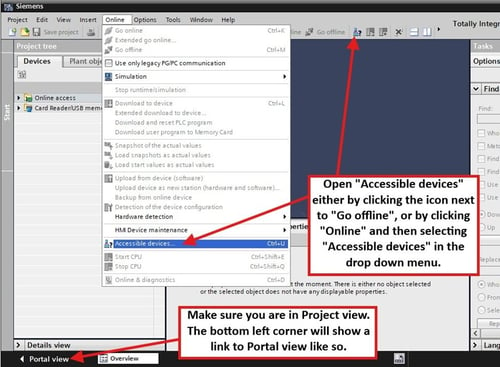
Open "Accessible devices" from the Online menu or toolbar icon. Make sure you are in Project view first.
With the Accessible devices window open, choose PN/IE in the Type of the PG/PC interface dropdown. Next, select your ethernet adapter from the PG/PC interface dropdown. This could be a USB to ethernet adapter, or an ethernet adapter that is part of your computer. Click Start search to begin the scan for devices. Any devices found will be displayed in the list. If they have an IP address that will be displayed as well.
.png?width=500&height=372&name=download%20(1).png)
Set the interface type to PN/IE, select your ethernet adapter, then click Start search.
Missing Interfaces
If your ethernet interface is not listed in the PG/PC interface dropdown, work through the following checks:
-
Is the interface a USB to ethernet adapter? Make sure it is fully plugged into the computer.
-
Is your interface enabled? Check Windows Device Manager to ensure it is not disabled.
-
If your interface is still not in the list, you can download and run the PC Identifier script. This will scan your computer for interfaces to populate. You can download it from our server here. Just close TIA Portal, extract the zip file and run the executable inside.
Finding a PLC continued
If the Accessible devices scan does not find your PLC check the following:
-
Are you trying to find devices from another network or location? The scan is not routable. It won’t work through a VPN or router.
-
Security applications installed on your computer can prevent the scan. These will frequently have names or references to endpoint protection. Talk to your IT department about temporarily disabling these or consider using a computer that is less restricted.
-
Some switch configurations can also block the scan. If you can connect your ethernet cable directly to the PLC, it is recommended you do so.
-
Finally, double-check that your PLC is powered on, and that your ethernet cable is fully plugged in on both ends.
When your PLC appears in the accessible devices list, you can click to highlight it and then click Show. If the PLC has an IP address on a different subnet than your ethernet adapter, a pop-up will request permission to assign an additional IP address to your ethernet adapter so that it can communicate with the PLC. Choose Yes to allow TIA Portal to automatically add the necessary IP address for you.
.png?width=500&height=199&name=download%20(2).png)
Click Yes to allow TIA Portal to automatically add the required IP address to your adapter.
Assigning an IP Address
You can expand the small black arrow to the left of your device and choose Online and Diagnostics. On the left side of the window that opens, you can expand the Functions section giving you the ability to assign an IP address or Profinet name to the PLC.
.png?width=500&height=255&name=download%20(3).png)
Expand Functions > Assign IP address in the Online & Diagnostics view to set the PLC’s IP address.
Downloading to the PLC
If you’re having trouble downloading your project from TIA Portal to the PLC, work through the following:
-
Is the PG-PC interface correctly configured? This setting is handled in the Windows Control Panel under either “Set PG/PC Interface (32 bit)” or “Communication Settings”. See instructions below on setting this correctly.
-
Try turning off the Wifi adapter on your computer. These can sometimes cause network collisions due to similar local network addresses preventing the connection to the PLC.
-
Make sure the ethernet adapter on your computer is configured to be in the same subnet as your PLC. This can be more complicated if you are using a subnet other than 255.255.255.0.
Configuring the PG/PC Interface
Open your Windows Control Panel. If you don’t see “Communication Settings” or “Set PG/PC Interface (32-bit)”, then start by changing the “View by” option in the top right corner to Large icons. Then you can open either application: “Communication Settings” or “Set PG/PC Interface (32-bit)”.
.png?width=500&height=270&name=download%20(4).png)
Open Control Panel and switch to Large icons view if needed. Both Communication Settings and Set PG/PC Interface (32-bit) accomplish the same goal.
Using Set PG/PC Interface (32-bit)
If you open Set PG/PC Interface (32-bit) it will open in a small window. The tab at the top should default to Access Path. The Access Point of the Application in the first drop down box should say S7ONLINE (STEP 7). If it doesn’t, please select it.
Next, in the second box, scroll to select your ethernet adapter. There should be 3 entries for it. You can scroll right to view the full name of the interface. Click to select your ethernet adapter that ends in “.TCPIP”, do not select the one ending in “.ISO” or “.TCPIP.Auto”. Once you’ve clicked to select your interface, it should be listed in the first drop down bar, to the right of S7ONLINE (STEP 7). Just click Ok in the bottom left. You’ve now set the interface.
.png?width=400&height=427&name=download%20(5).png)
Select your ethernet adapter ending in .TCPIP — not .ISO or .TCPIP.Auto.
Using Communication Settings
If you open Communication Settings, it will open in a larger window. On the left side, click to select the Access points icon. The access points will be listed on the right side. Find and click to select the S7ONLINE Access point. If you scroll down you can now modify the associated interface with the access point by changing the drop box. Make sure to choose your ethernet adapter that ends in “.TCPIP”, do not select the one ending in “.ISO” or “.TCPIP.Auto”. You can click Apply to finish the assignment.
.png?width=500&height=390&name=download%20(6).png)
In Communication Settings, select the S7ONLINE Access Point and assign your ethernet adapter ending in .TCPIP.