If you've used Siemens' older Sizer software to size drives and motors, you may not realize it's...
This white paper outlines the process for configuring a Siemens Automation License Manager (ALM) license key server and connecting client PCs to consume floating licenses over a network. It is intended for IT administrators and engineers responsible for deploying and managing Siemens software licenses within an organization.
1. Overview
Siemens floating licenses allow multiple users across a network to share a pool of licenses managed from a central server. Rather than assigning a dedicated license to each individual machine, licenses are "checked out" on demand and returned to the pool when no longer in use — maximizing utilization and reducing cost.
2. Setting Up the License Key Server
To do this you need to:
1. First install ALM on the desired PC acting as a license key server and transfer all the license keys they'd like to host directly to that PC.
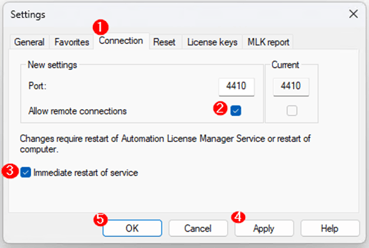
2. Then they need to allow remote connections to that PC. Do that via the "Connection" tab in the "Settings" dialog:
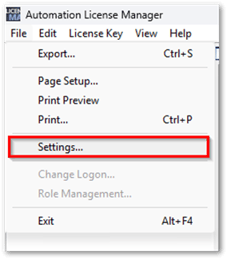
a. Select the checkbox "Allow remote connections" under "New settings".
b. Select the checkbox "Immediate restart of service" if you want your changes to take effect immediately. Click 'Apply'. The ALM service will automatically restart.
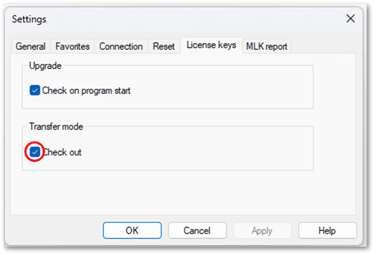
3. Go to the “License keys” tab in the Settings dialog and select the check box “Check out” under “Transfer Mode”
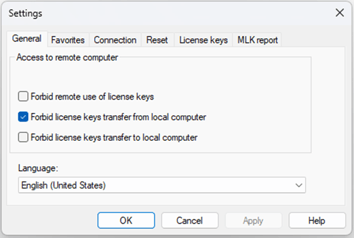
4. Go to the “General” tab in the settings dialog and make sure “Forbid remote use of license keys” is unchecked
5. Click ‘OK
3. Connecting a Client PC to the License Server
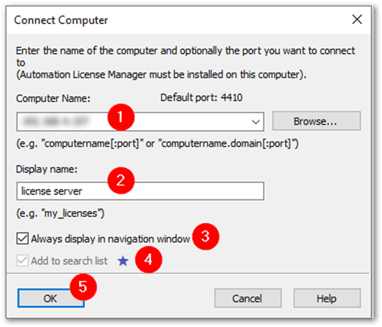
6. On the Client PC, you will need to establish a connection to the license key server. Here’s the procedure to do this:
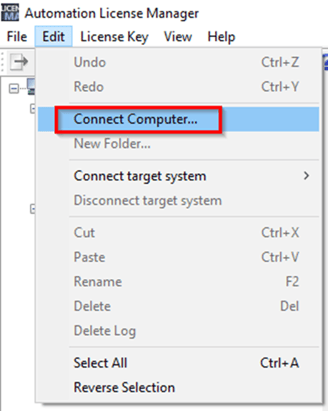
a. Click ‘Edit’ > ‘Connect Computer’
b. In "Computer Name", enter the name of a reachable computer or select one from the drop-down list.
The following can be used for the computer name: "ComputerName", or "ComputerName.Domain" or "IP address".
c. To search for a computer in the network, click "Browse".-
- Double-click on "Entire network".
- Double-click on "Microsoft Windows Network".
- If the computer is located in a domain, select this domain.
- Select the computer and click "OK" to confirm your selection.
d. Under "Display name", you can enter any display name for the computer (i.e. ‘License Server’).
e. Select the "Always display in navigation window" check box if you want the entered computer to be available after a restart of the Automation License Manager.
f. Select the "Add to search list" check box if you want the entered computer to be included in the list of computers to be searched for license keys.
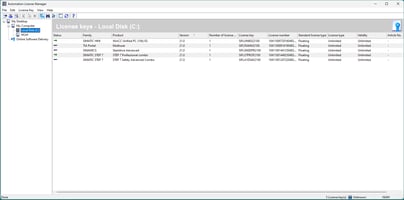
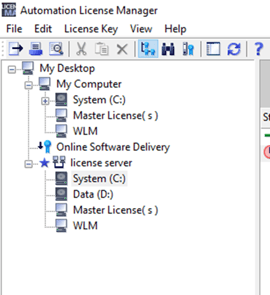
The license key server should now appear in the navigation panel on the left wit the name you provided in the previous step:
4. Using Floating Licenses
The license client PC is now able to “check out” available license keys automatically without manual effort. Just open the software that you need to use and the “check out” process will happen automatically in the background by ALM.
When a floating license is unavailable (i.e. being used by another client) you will see the following “green arrow” icon under the “status” column of the license key:

5. Handling Client Disconnections
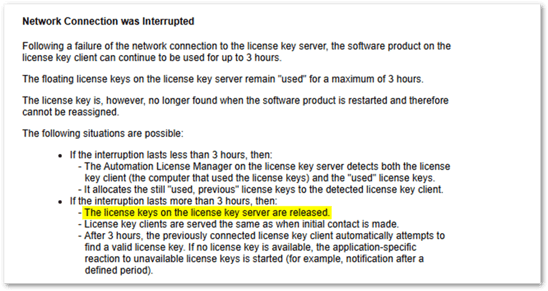
Here’s the link to the manual which describes how a floating license key reacts to the failure of the computer connection. Note that after 3 hours of a client disconnecting from the license server, the license key on the license server is then “released” (meaning made available for other clients to use).
https://support.industry.siemens.com/cs/us/en/view/102770153/63405706123
6. Additional Documentation at Siemens Industry Online Support (SIOS)
The following SIOS entries provide the official and most up-to-date guidance on this topic:
| Topic | SIOS ID | Description & Link |
|---|---|---|
| Automation License Manager (ALM) – software and general documentation | 114358 | "Software for the authorization and licensing of SIMATIC products (ALM)" |
| License server and protection concepts | 25619729 | "How do you store licenses on a server and protect them from unauthorized access?" |